



How to set up a slot request command for Twitch chat
With a slot request command, viewers type !sr followed by a slot name and the request lands in a queue you control. CasinoStreamTools runs the chat bot for you, so there is nothing to install. It works with Twitch chat today; Kick chat is not supported yet.
How !sr works
- A viewer types !sr and a slot name, for example: !sr Sweet Bonanza.
- The bot reads it and adds the request to your queue with the viewer’s display name. Messages without !sr at the start are ignored and not stored.
- The command is not case-sensitive (!SR works too). The slot name is kept up to 120 characters.
- The bot only reads chat. It does not post replies in your channel.
Step 1: connect your Twitch channel
Open the Chat Bot tab in the dashboard and press Connect Twitch. Twitch asks you to confirm that the channel is yours; no chat permissions are requested. Within about a minute the bot joins your channel.
Step 2: manage the queue
Every request appears in the Slot Requests tab. Mark a request as Played when you play it, or Declined to remove it from the list on stream.
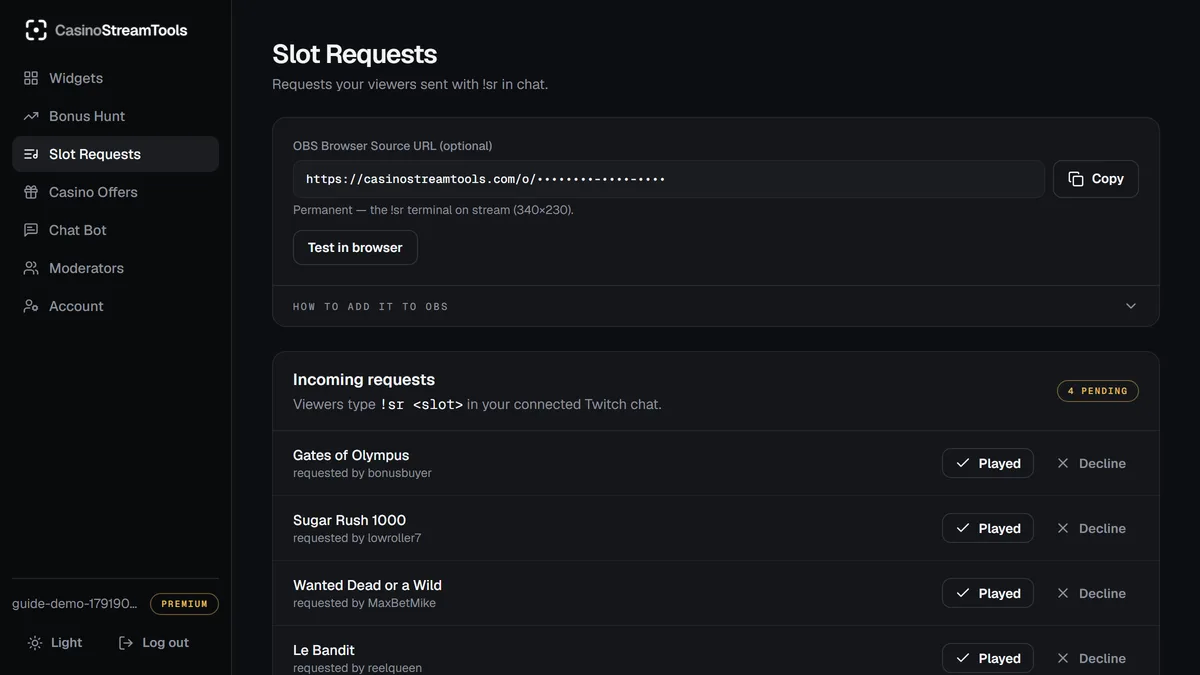
Step 3 (optional): show the queue on stream
The !sr widget shows the pending requests and the most recently played ones as a small terminal. Add it like any widget, with the recommended size 340 × 230.
- In the dashboard, open the Widgets tab and press Copy next to “OBS Browser Source URL”.
- In OBS, click + under Sources, choose Browser and give the source a name.
- Paste the URL into the URL field and set Width and Height to the recommended size shown under the URL.
- Leave the background alone: the widget page is transparent, so only the widget appears over your scene.
- Click OK, then resize or move the source on your canvas like any other source.
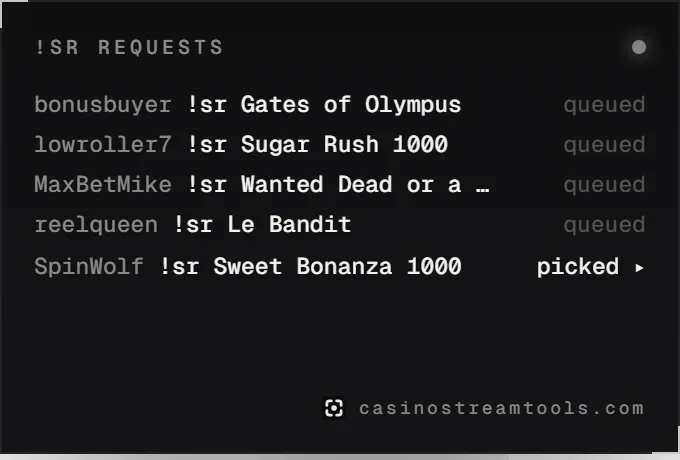
Good to know
- Your moderators can manage the queue too, once you invite them in the Moderators tab.
- There is no per-viewer limit yet. If chat floods the queue, decline the extra requests in the dashboard or ask a moderator to.
- Kick: not supported yet, because Kick has no stable public chat API. Your overlays still work on Kick (see the Kick overlay guide).
- Viewer display names and the requested slot are stored until you remove them or delete your account (see the privacy policy).