



Kick stream overlay setup for casino streams
Kick takes the video your streaming software sends it, so overlays live in OBS, not on Kick. Everything you add as an OBS source shows up on your Kick stream. This guide covers the setup and is clear about the one thing that does not work on Kick yet: the !sr chat command.
What works on Kick
- All CasinoStreamTools widgets (Bonus Hunt, and the Premium widgets once they launch): they are OBS browser sources, so they work with any platform OBS streams to.
- The free overlay pack: starting soon, BRB and ending scenes, facecam and chat frames, a lower third and an alert box, as transparent PNG, WebM or live browser source.
- Your public bonus hunt page and Casino Offers page: they are normal web links you can put in your Kick bio or chat.
Not yet on Kick: the !sr slot request command reads Twitch chat only. Kick has no stable public chat API we can build on today, so we have not built a Kick chat integration.
Step 1: connect OBS to Kick
- In your Kick creator dashboard, find your stream URL and stream key (keep the key private).
- In OBS, open Settings → Stream, choose Custom as the service and paste the stream URL as Server and the key as Stream Key.
- Start a short test stream to check that Kick receives video before you add overlays.
Step 2: add the bonus hunt widget
- In the dashboard, open the Widgets tab and press Copy next to “OBS Browser Source URL”.
- In OBS, click + under Sources, choose Browser and give the source a name.
- Paste the URL into the URL field and set Width and Height to the recommended size shown under the URL.
- Leave the background alone: the widget page is transparent, so only the widget appears over your scene.
- Click OK, then resize or move the source on your canvas like any other source.
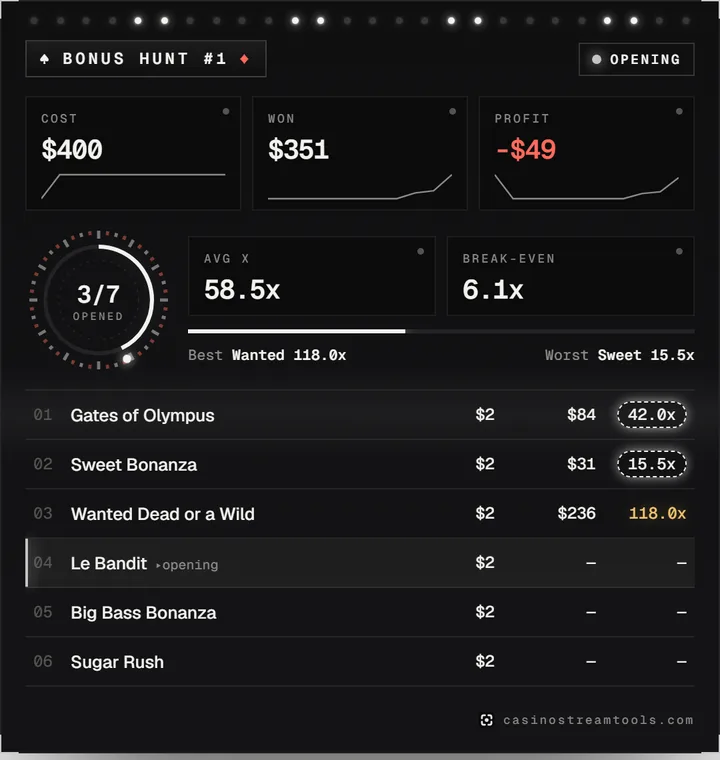
Use 540 × 570 for the Bonus Hunt source. Place it where it does not cover the game reels, usually a side column next to the slot.
Step 3: add starting soon and frame scenes
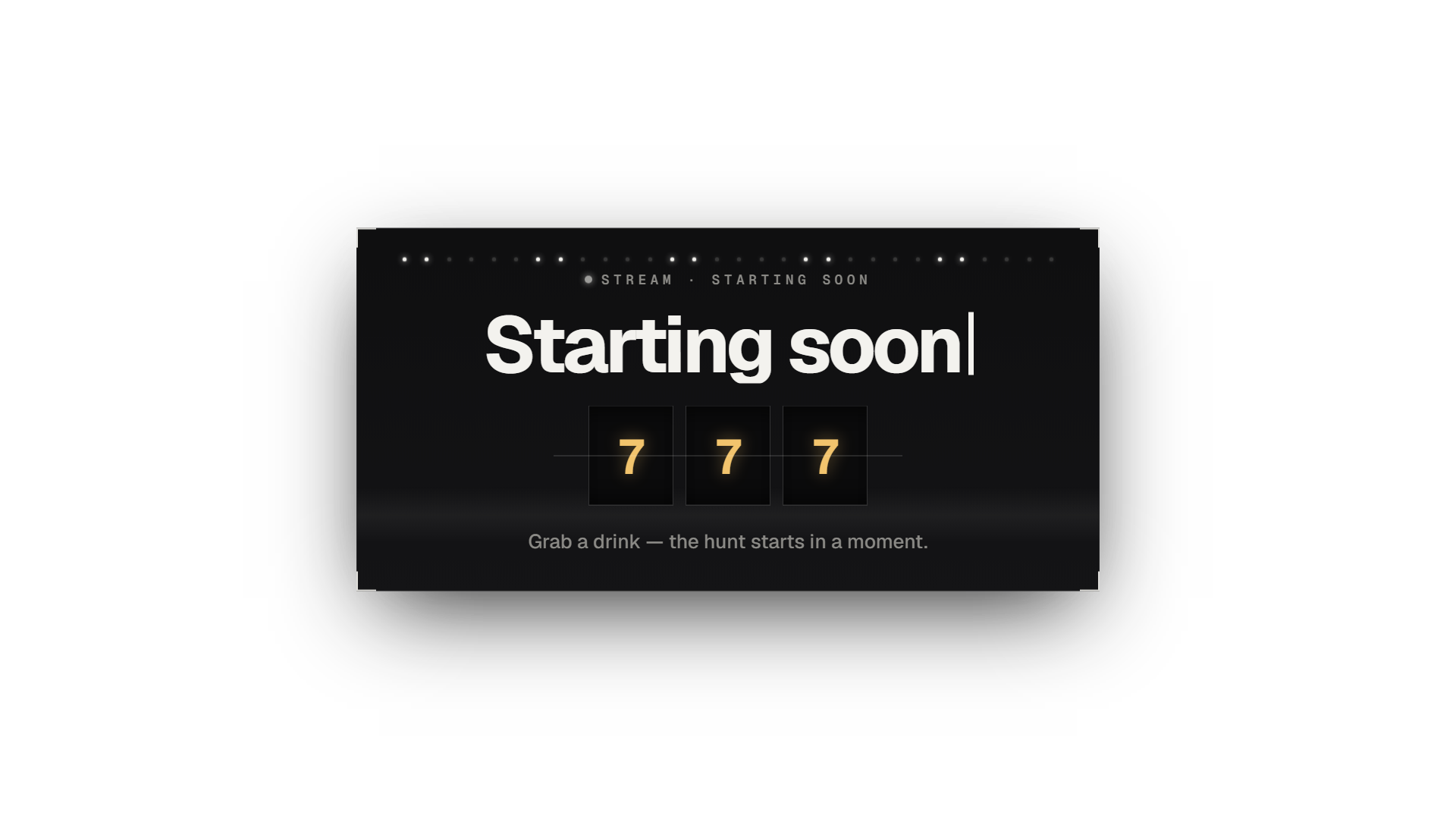
Download the free overlay pack or use each scene as a live browser source (its URL is listed on the overlay pack page). Animated scenes loop seamlessly. Put Starting Soon, BRB and Ending in their own OBS scenes, and the frames as sources on top of your game capture.
Checklist before you go live on Kick
- Check the gambling and content rules of Kick and of the country you stream from; they change, and they are your responsibility.
- Keep every OBS URL off screen. If one leaks, regenerate it in the dashboard.
- Show responsible-gambling information and an 18+ notice where your audience can see it.
- Do a private test recording to check that no overlay covers the game or your facecam.